Incident Management
1. Overview
The Incident Management module in SIRP is the central command hub for analysing, investigating, and resolving security incidents. Designed to accelerate response without compromising auditability.
At its core is the OmniSense Workbench, a decision centric interface powered by SIRP’s agentic mesh and security-trained LLM. Here, analysts don’t just view incidents; they collaborate with intelligent agents delivering real-time summaries, automated enrichment, contextual recommendations, and next-step actions.
2. Grid View & Navigation
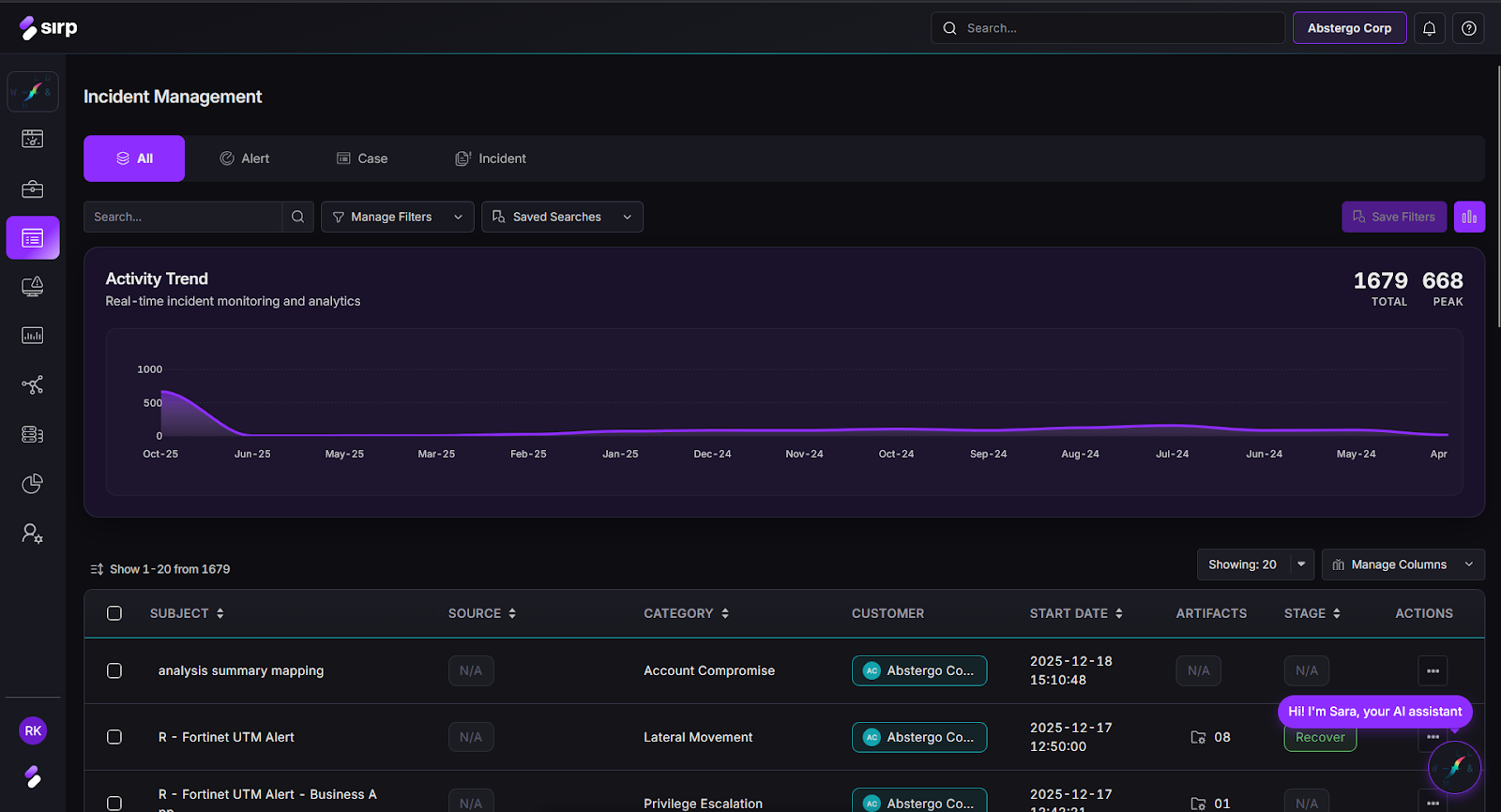
2.1 Default Tab: All
- Upon entering the module, the “All” disposition is displayed by default.
- This tab lists all dispositions the user has permission to view.
- It acts as the starting point for searching, filtering, and navigating all ticket records.
2.2 Other Tabs
- Alert — shows events originated as system alerts.
- Cases — filters to events that are under investigation.
- Incident — shows events that are true and are considered as real incidents.

2.3. Search & Saved Searches
- A Search bar is present at the top of the page. You can input keywords, IDs, or incident subjects to find specific records.
- Once you set a search + filter criteria, you can Save Search, which stores that configuration into saved searches for fast reporting.

2.4. Manage Filters
- The Manage Filters option lets the user filter the results by choosing between a variety of filters (e.g., Severity, Assign To, Status, Category, Date range).
- After enabling desired filters, a user can also select values against them, which can be more than one, and apply them to narrow the results shown.
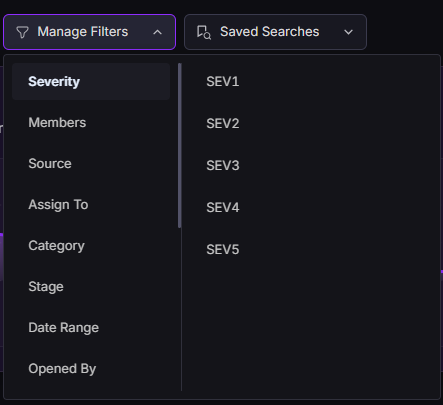
Severity Levels:
- SEV1 – Active, critical threat with immediate business or operational impact
- SEV2 – High-risk confirmed threat requiring expedited response
- SEV3 – Suspicious or moderate-risk intelligence requiring validation
- SEV4 – Low-risk or contextual intelligence
- SEV5 – Informational intelligence retained for reference
2.5. Incident Activity Trend
- Incident Activity Trend reflects the real-time count of incidents over a certain time period.
- The grid dynamically updates based on the user's current filters and date range.
- Hovering over a bar reveals the exact incident count.
- Clicking a bar may refine the table below to that time slice.

2.6. Manage Columns
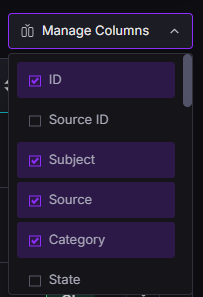
- Use Manage Columns to select which fields/columns appear in the incident table (e.g., Master ID, Subject, Category, Source etc).
- Note:Priority = P, P0: Critical and P3: Low.
- A user may reorder, hide, or show additional columns as needed for your workflow.
2.7 Actions
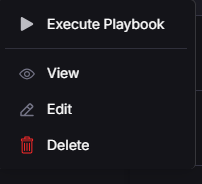
Each record in the table has an Actions menu (three dots) which provides the user different actions to run:
- View — opens the full detail view for that record (Raw Payload, attachments, activity, Description).
- Edit — .opens the edit form for the user to make changes to the record.
- Delete — remove the record from the system (typically restricted to admins).
- Execute Playbook — manually trigger a playbook (automated workflow) for that incident.
3. Create a Ticket in SIRP
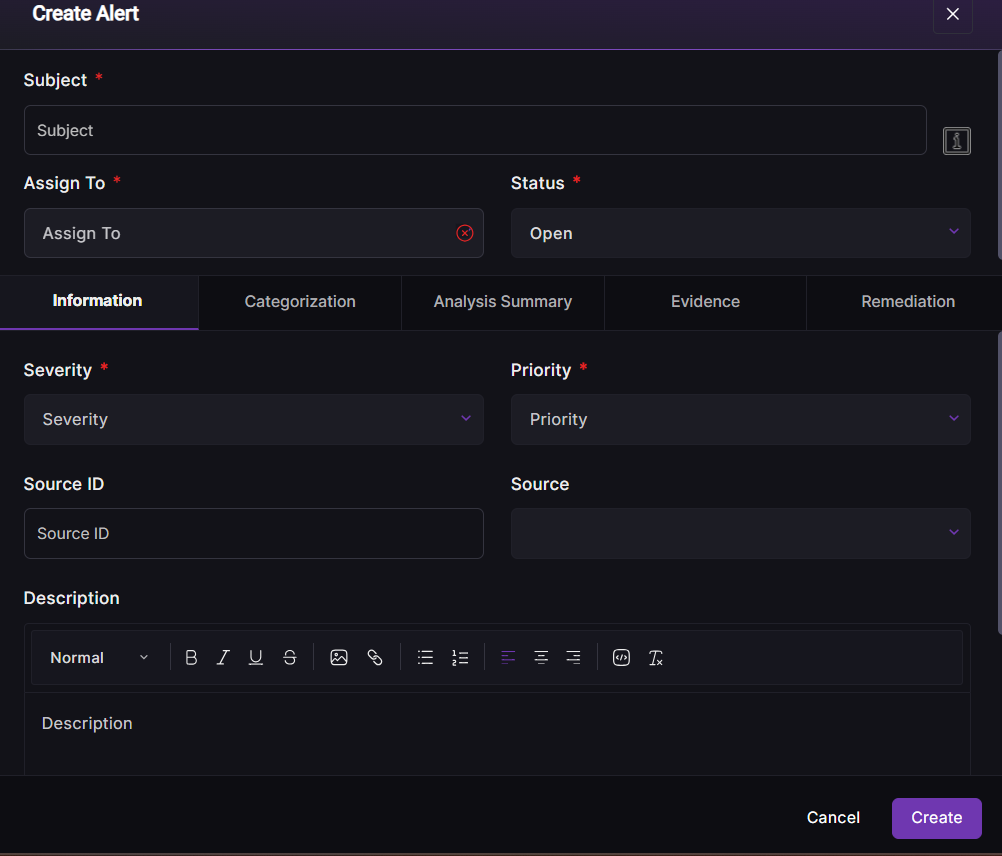
- From the main header, click the Create Alert button to open the alert form.

3.1 Information Tab
The Information tab within the Create Alert form is where users define the core attributes and contextual details of a new alert before it enters the triage process. It ensures all critical information—technical and operational—is captured accurately.
Field Descriptions
- Subject – The alert title or short description summarizing the detected issue or event.
- Assign To – Select the analyst or team responsible for investigating the alert.
- Status – Indicates the current stage of the alert (e.g., Open, In Progress, Closed).
- Severity – Defines the potential business or security impact level (Low, Medium, High, Critical).
- Priority – Specifies the urgency or response order for handling the alert.
- Source ID – Unique identifier referencing the alert in its originating system (e.g., SIEM or EDR).
- Source – Name of the platform or tool from which the alert was ingested or created.
- Description – Detailed explanation of the alert, including symptoms, observed activity, and potential impact.
- Start Date / Due Date / Close Date – Timeline fields for tracking alert creation, investigation deadlines, and resolution completion.
Actions
- Create – Saves and submits the alert into the SIRP system.
- Cancel – Exits the form without saving entered data.
Purpose:
The Information tab forms the foundation of every alert record, capturing who owns it, how severe it is, where it originated, and what it describes, enabling downstream automation, prioritization, and intelligent response through SIRP’s OmniSense and Reflex engines.
3.2 Categorization Tab – Create Alert Overview
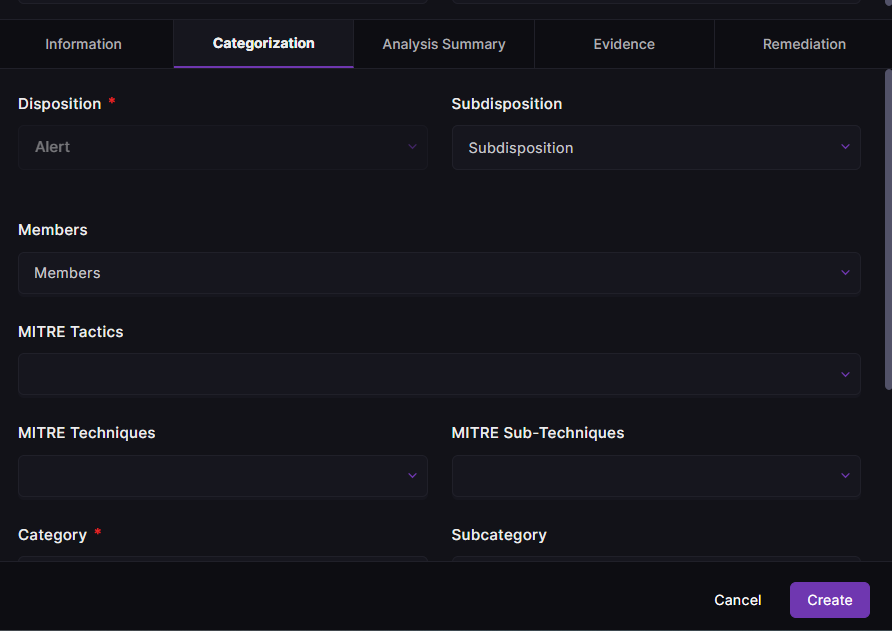
The Categorization tab helps classify alerts with precise contextual and tactical details, ensuring consistent tagging, mapping, and automation within SIRP. It standardizes how alerts are understood and acted upon across the SOC.
Field Descriptions
- Disposition – Defines the overall outcome or handling intent of the alert (e.g., True Positive, False Positive, Under Investigation).
- Subdisposition – Provides a more specific classification under the main disposition for granular tracking.
- Members – Lists analysts or team members associated with managing or reviewing the alert.
- MITRE Tactics – Maps the alert to adversary objectives based on the MITRE ATT&CK framework (e.g., Initial Access, Lateral Movement).
- MITRE Techniques – Specifies the techniques used by adversaries that triggered the alert (e.g., Phishing, Command Execution).
- MITRE Sub-Techniques – Adds deeper precision by identifying specific attack variations or methods.
- Category – Defines the primary classification of the alert type (e.g., Malware, Insider Threat, Policy Violation).
- Subcategory – Narrows down the alert type for more detailed categorization (e.g., Malware → Ransomware).
Actions
- Create – Saves and categorizes the alert with defined mappings.
- Cancel – Exits without saving the categorization data.
Purpose:
The Categorization tab ensures each alert is contextually mapped to relevant MITRE tactics, threat types, and organizational structures — enabling standardized reporting, improved automation, and deeper correlation through SIRP’s IQGraph and OmniSense frameworks.
3.3 Analysis Summary Tab
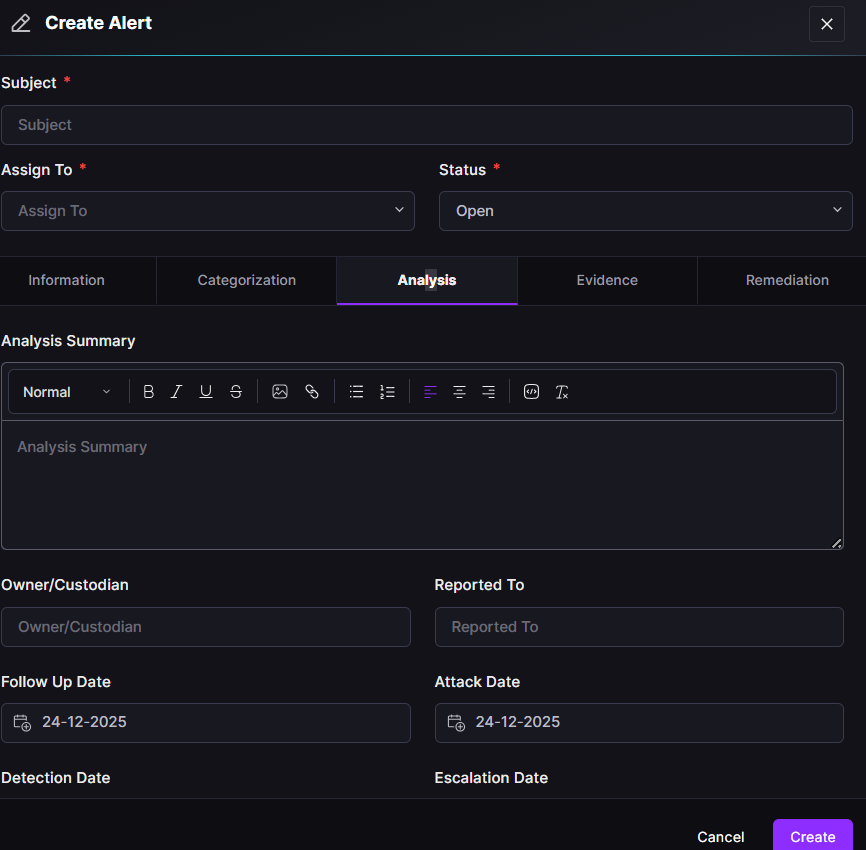
The Analysis Summary tab is designed for documenting the investigative findings, timelines, and key stakeholders related to an alert. It serves as the analytical backbone of each alert, capturing how, when, and to whom the incident evolved, incorporating AI agents to give the user a defined and precise Summary.
Field Descriptions
- Analysis Summary – A detailed narrative describing the alert investigation, root cause, findings, and analyst observations.
- Owner/Custodian – Identifies the system or data owner responsible for the affected asset or environment.
- Reported To – Specifies the individual or department notified about the incident (e.g., CISO, Incident Response Lead).
- Follow Up Date – Sets a reminder or review date for post-incident tracking or closure validation.
- Attack Date – Captures when the malicious activity or compromise was executed.
- Detection Date – Records when the threat or alert was first detected in the environment.
- Escalation Date – Marks when the incident was elevated to a higher severity or authority level.
Actions
- Create – Saves the entered analysis details as part of the alert record.
- Cancel – Exits without saving the information.
Purpose:
The Analysis Summary tab centralizes investigative insights and critical event timelines, ensuring analysts can document, review, and correlate incident data efficiently. It enhances traceability, supports reporting accuracy, and feeds context into OmniSense for future learning and automation.
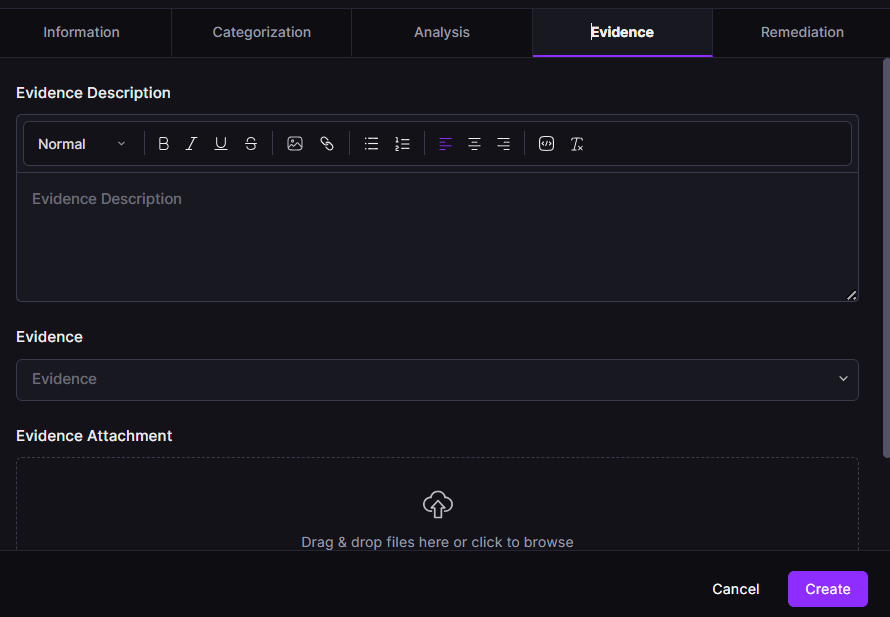
3.4 Evidence Tab
The Evidence tab is designed for uploading, describing, and managing all forms of evidence collected during an alert or incident investigation. It serves as a central repository where analysts can attach proof, document findings, and maintain traceability throughout the incident lifecycle.
Field Descriptions
- Evidence Description – A detailed explanation or narrative of the evidence being uploaded, including its purpose, relevance, and relation to the alert or incident.
- Formatting Toolbar – Allows analysts to style text (bold, italic, underline), insert links or images, and structure information for clarity.
- Evidence – A dropdown to categorize the type of evidence (e.g., log file, email header, screenshot, network capture).
- Evidence Attachment – Enables uploading supporting files or artifacts directly related to the evidence entry. The “+” button is used to add multiple attachments if needed.
Actions
- Create – Saves the evidence entry into the alert or incident record, making it accessible for future reference and reporting.
- Cancel – Discards the current input without saving any changes.
Purpose:
The Evidence tab ensures secure, organized, and verifiable documentation of all materials supporting an investigation. By maintaining structured evidence records, analysts enhance audit readiness, support compliance requirements, and provide rich contextual data for OmniSense correlation and incident reconstruction.
3.5 Remediation Tab
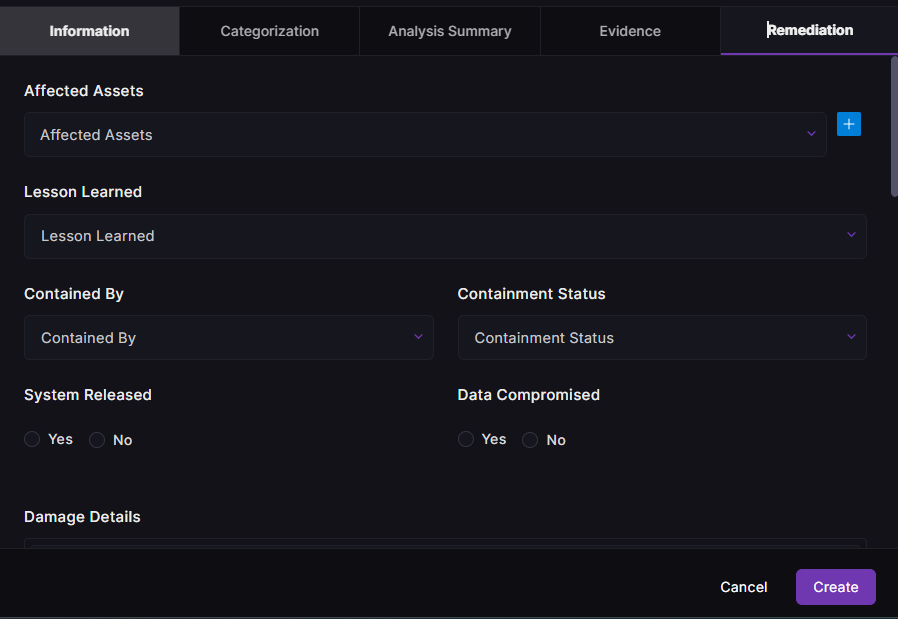
The Remediation tab in the SIRP Incident Management module is where analysts document and manage all post-incident actions aimed at containment, eradication, and recovery. It provides a structured interface to capture remediation details, lessons learned, and verification of containment effectiveness.
Field Descriptions
- Affected Assets – Lists the systems, endpoints, or applications impacted by the incident. Analysts can add multiple assets using the “+” button.
- Lesson Learned – A summary of key takeaways or preventive measures identified during or after incident resolution to strengthen future response.
- Contained By – Specifies the individual, team, or automated mechanism responsible for containing the incident.
- Containment Status – Indicates the current state of containment (e.g., In Progress, Completed, Pending Verification).
- System Released – A binary option (Yes/No) confirming whether affected systems have been restored or released back into production after validation.
- Data Compromised – Identifies if any sensitive data was breached or exfiltrated during the incident.
- Damage Details – A descriptive field to record the nature and extent of any operational, financial, or reputational damage incurred.
Actions
- Create – Saves all remediation data into the incident record, ensuring traceability and supporting post-incident reporting.
- Cancel – Discards unsaved entries or changes.
Purpose:
The Remediation tab ensures that all containment and recovery activities are well-documented and verifiable. It strengthens accountability, supports post-incident reviews, and contributes to continuous improvement in security operations by capturing both technical and procedural insights.
4. Detail View & Omnisense
When you view an incident, you see multiple tabs/modules within its detail page:
General Information Panel
This top section in the SIRP Incident Management module displays essential alert details at a glance, helping analysts quickly assess and prioritize their response actions.
Key Elements and Functions:
- Ticket ID and Source – The unique identifier (e.g., #89378) along with the source name (Fortinet UTM Alert) helps trace the origin of the alert.
- Status (Open/Closed) – Shows the current state of the alert, allowing analysts to track progress throughout the incident lifecycle.
- Priority – Indicates the urgency level (e.g., High), guiding analysts on which alerts need immediate attention.
- Severity – Reflects the potential impact of the alert (e.g., Low, Medium, High), helping categorize response intensity.
- Category – Defines the alert type (e.g., Vulnerabilities Exploitation) and can be modified by clicking “Change Category.”
- Analyst – Displays the assigned analyst. If not set, it allows for manual assignment to ensure accountability.
- Tags – Analysts can attach descriptive or contextual tags for easy grouping, filtering, and reporting.
- Timestamp – Shows the creation time of the alert for chronological tracking.

- Action Buttons (Right Side):
- State – Highlights the current state of the ticket and allows the user to change it.
- Play Button – Initiates automated workflows or investigation playbooks.
- Mail Icon – Enables communication or notification actions related to the alert.
- Pencil Icon – Used to make changes to the ticket.
- State – Highlights the current state of the ticket and allows the user to change it.
4.1 General Tab
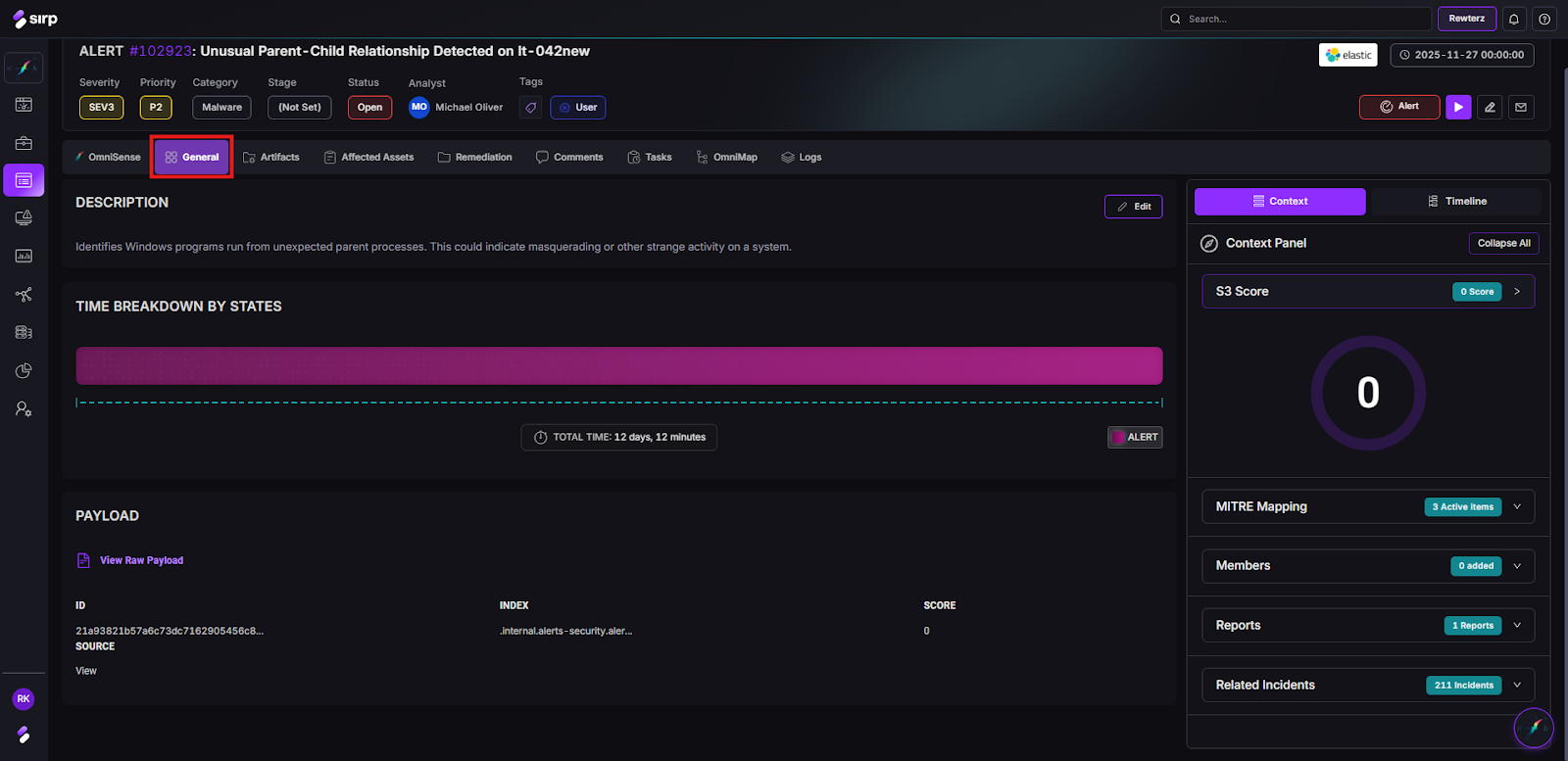
The General tab presents the core details and lifecycle information of an alert in a single view.
- Description – High-level summary of the alert.
- Analysis Summary – Analyst or AI-generated investigation overview.
- Evidence Summary – Consolidated view of key findings and indicators.
- Evidence Attachments – Files, logs, or artifacts linked to the alert.
- Time Breakdown by State and Stage – Visual timeline showing time spent across alert states and investigation stages.
- Pre-Processing Report – Normalized and enriched data generated before analysis.
- Raw Payload – Original, unmodified alert data from the source system.
Purpose:
Provides a complete, authoritative reference for understanding alert context, evidence, and timeline before deeper analysis or response.
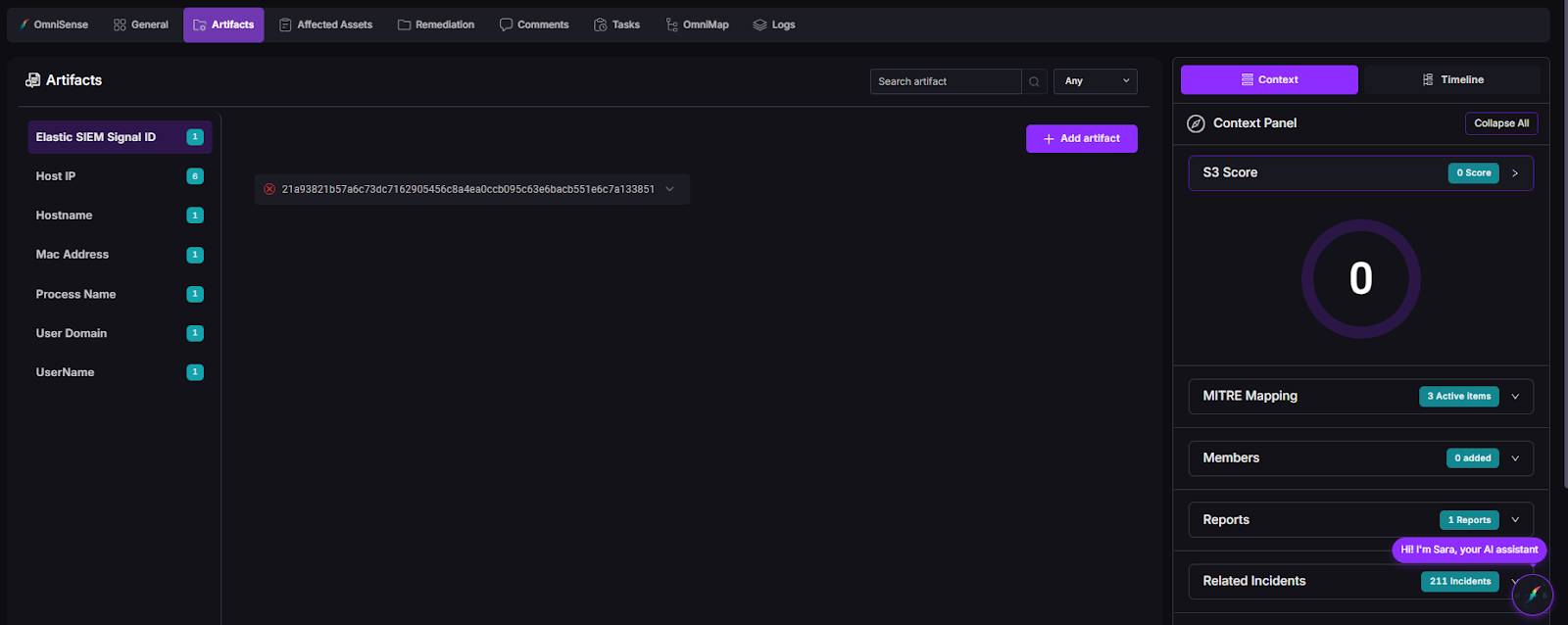
4.2 Artifacts
- Lists all artifacts tied to the incident (hashes, IPs, files, URLs).
- Each artifact may be enriched (VirusTotal, threat feeds) and connected to MITRE mappings.
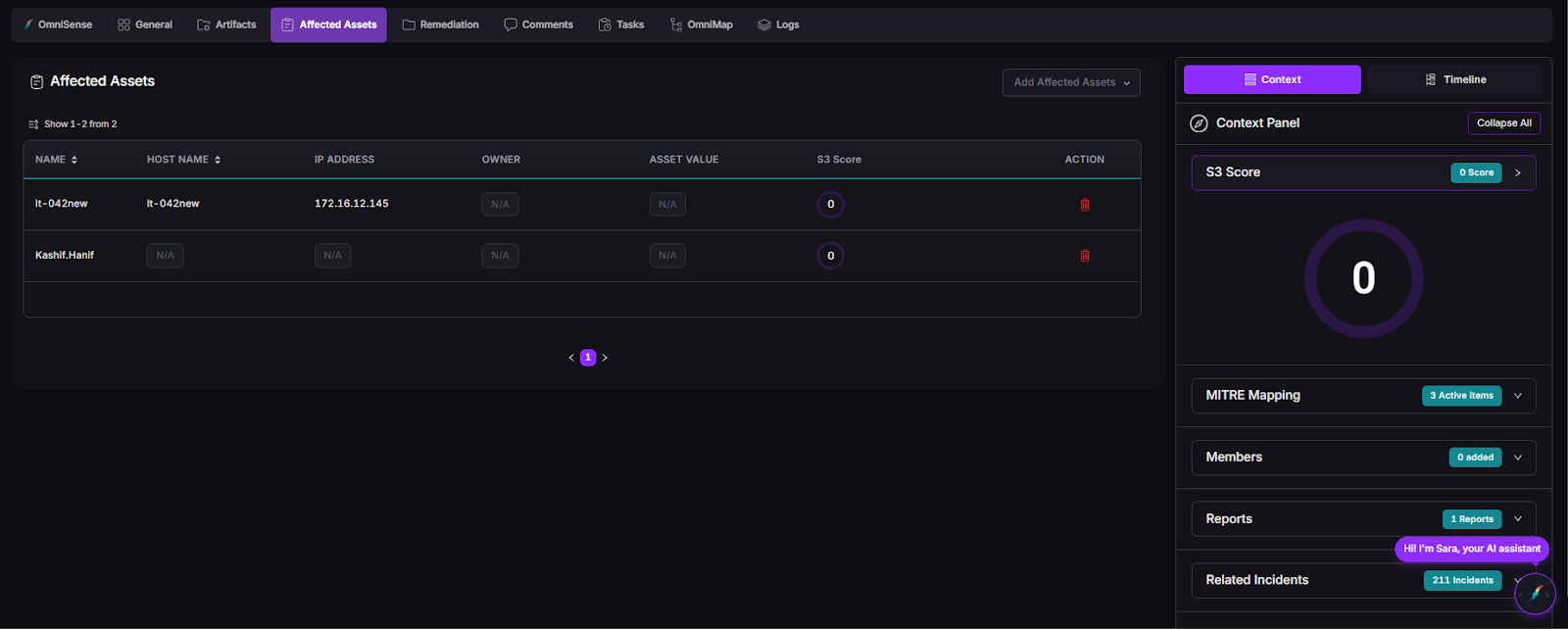
4.3 Affected Assets
- Systems or users impacted by this incident, along with criticality, ownership, and status.
- From here, you can initiate remediation actions (e.g., isolate the host, open a ticket for patching).
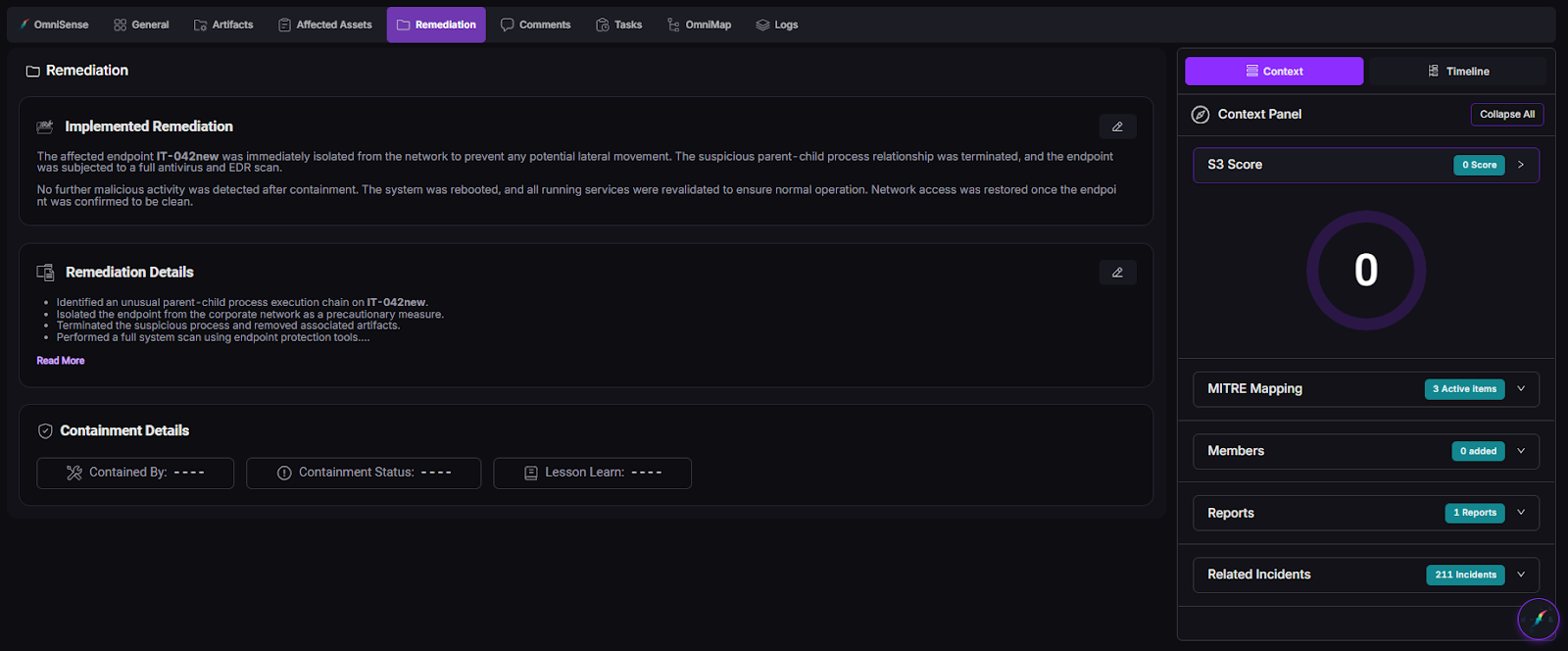
4.4 Remediation
- Chronological log of all response actions: playbooks executed, tasks carried out, host isolations, and tickets opened/closed.
- Provides visibility into what was done, when, and by whom.
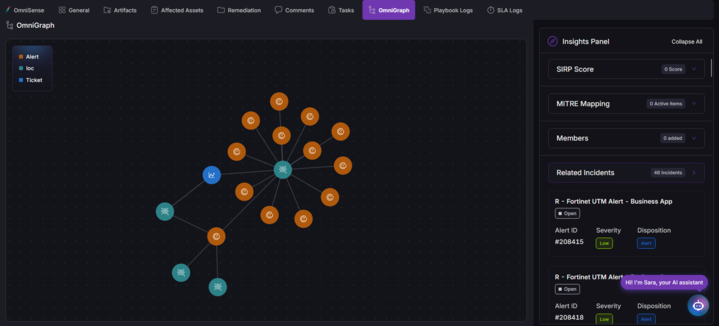
4.5 Omni Graph
- A relational graph view connecting this incident, its artifacts, tasks, analysts, and related incidents.
- Use it to understand links (e.g., same IOC across incidents, shared analysts) and navigate to related records.
- Helps detect dependencies, correlations, and workload overlaps.
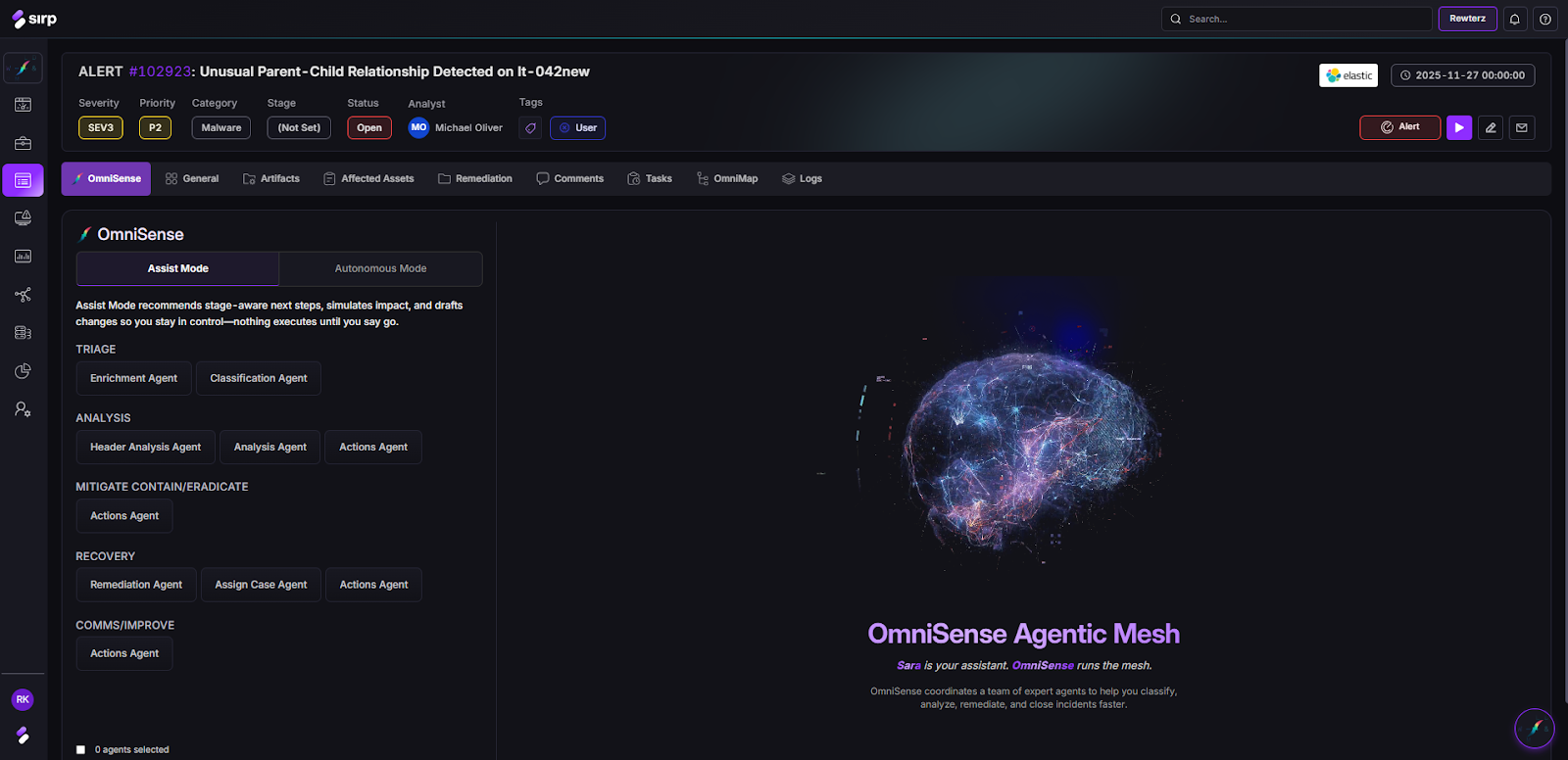
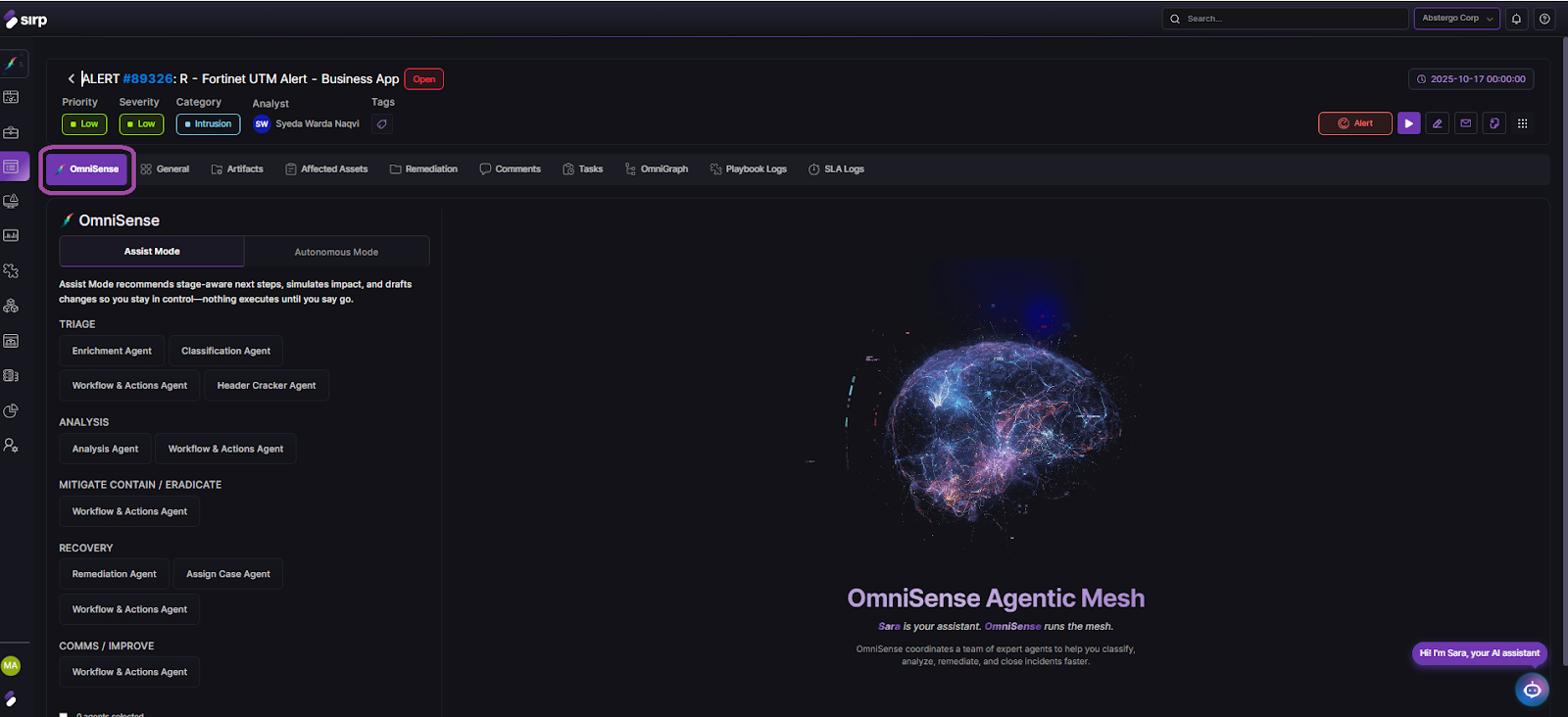
4.6 OmniSense
The OmniSense Workbench serves as the intelligent automation and analysis hub within the Incident Management module. It continuously processes data, detects patterns, and assists analysts with decision-making.
SIRP’s AI-native assist/autonomous Agents:
Assist mode: Provides guided recommendations and contextual insights. Analysts retain control, manually approving actions or playbooks suggested by OmniSense.
Autonomous mode: Executes predefined or learned response actions automatically based on confidence levels and policy rules, significantly reducing response times.
Agents & Preprocessing: behind the scenes, OmniSense uses agents to normalize incoming alerts, enrich artifacts (IOC lookups, threat intel), compute confidence scores, and feed recommendations to analysts before running the agents.
Omnisense contains the following agents :
- 1. Enrichment Agent
Automatically gathers and correlates threat intelligence, asset data, and behavioral context from integrated sources to enhance alert accuracy and depth.
- Classification Agent
Analyzes alert attributes and historical data to categorize incidents by type, severity, and intent — ensuring accurate prioritization and routing.
- Actions Agent
Orchestrates automated investigation and containment actions, executing predefined or adaptive actions across connected security tools.
- Header Analysis Agent
Performs in-depth inspection of email, network, or log headers to identify anomalies, spoofing attempts, or attack vectors.
- Analysis Agent
Applies OmniSense reasoning and pattern recognition to determine root cause, map to MITRE ATT&CK techniques, and suggest remediation steps.
- Remediation Agent
Analyzes corrective measures such as isolating hosts, blocking users, or removing malicious files, with analyst-in-loop controls if required.
- Assign Case Agent:
Automatically assigns the alert or case to the appropriate analyst or AI assistant (e.g., Sara) based on workload, expertise, and incident type.
Purpose:
Together, these OmniSense Autonomous Mode Agents form a self-optimizing response network — detecting, analyzing, and acting in real time. They transform traditional playbooks into adaptive, intelligence-led workflows, allowing the SOC to operate at machine speed while maintaining full explainability and control.
OmniSense uses multiple AI-driven agents for data preprocessing, enrichment, and correlation.
Agents analyze incoming alerts, tag them with relevant context, and detect relationships across data sources — ensuring a more informed and consistent response.
4.8 Context Panel
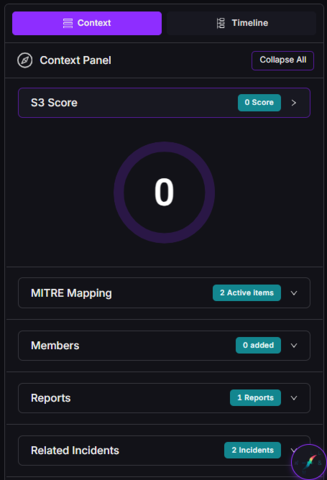
The Context Panel provides a consolidated, real-time snapshot of an incident’s risk, mappings, and relationships, enabling quick understanding without leaving the main view.
- S3 Score – Displays the current Intelligent Security Score representing overall incident risk.
- MITRE Mapping – Shows active MITRE ATT&CK techniques associated with the incident.
- Members – Lists analysts or responders assigned to the case.
- Reports – Indicates generated reports linked to the incident.
- Related Incidents – Highlights connected or similar incidents for broader context.
Purpose:
Acts as a quick-reference intelligence bar, giving analysts immediate situational awareness and context-driven insight for faster, informed decision-making.
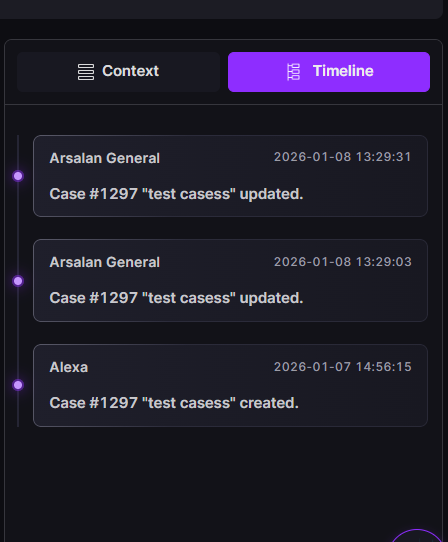
4.7 Timeline
The Timeline provides a chronological view of all activities related to the incident:
- Created — shows when the incident was created and by whom.
- Updated — records any changes made to the incident over time.
- User/System Attribution — identifies whether the action was performed by a user or the system.
- Timestamped Events — displays the exact date and time for each activity.
- Audit Trail — maintains a complete history of the incident lifecycle for tracking and review.